
Groups and access types
Groups decide which parts of your catalogue each person can see, and access types decide what they can do with it. Groups live under Clients → Groups; the defaults for visitors and signed in users live under Access settings.
How it works
- A group is a named segment such as Gold tier, Netflix or Germany. Each group has a Category: Tier, Client, Location or Industry. The category is descriptive; all groups behave the same way.
- Albums and labels are placed in groups. Putting a label in a group covers every album on it.
- Users are granted groups, together with the access types that membership gives them.
- A user can see an album only if they share at least one group with it.
Groups reach users in three ways, all of which stack:
| Source | Where to set it |
|---|---|
| Unauthenticated users: what visitors see before signing in | Access settings → Groups |
| Authenticated users: the default for every signed in user | Access settings → Groups |
| Domain access: groups for anyone whose email is at a given domain | Access settings → Groups |
| Custom access: groups for one specific user | Users → edit → Groups. Switch on No inheritance to give a user only their custom groups. |
Access types
| Access type | Lets the user |
|---|---|
| View | Browse and play. Always on for any group a user has. |
| Stems | See and download stem versions. |
| License | License tracks through your checkout. |
| MCPS licence manager | Handle MCPS licensing. |
| Watermark download | Download watermarked audio. |
| Download | Download full quality audio. |
Downloads are checked against these when a user requests them, so a user with view only access sees the catalogue but cannot download.
Create a group
- Go to Clients → Groups and click the round + button.
- Enter a Name (required), pick a Category and optionally a Country code.
- Click Create.
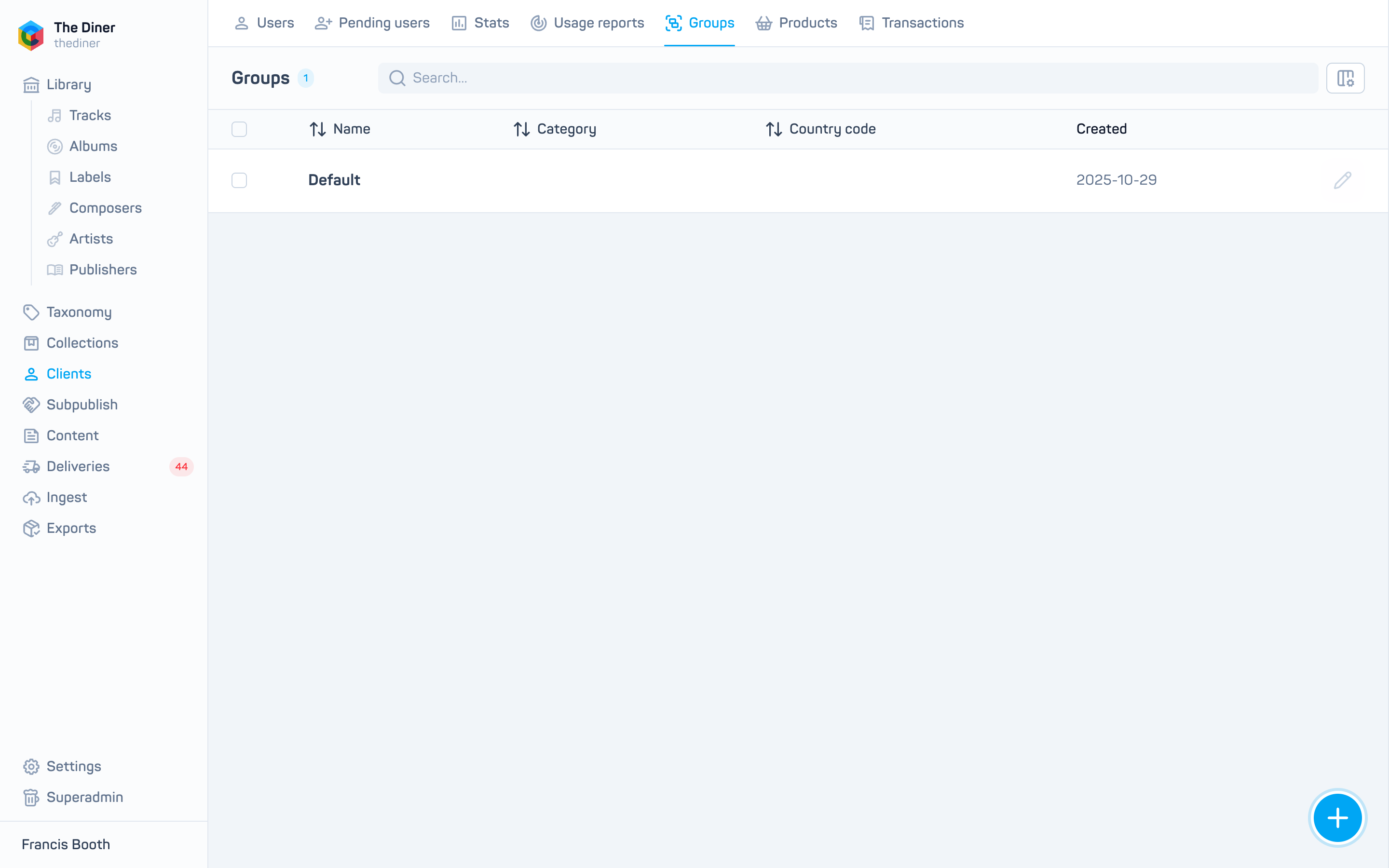
The list shows Name, Category, Country code and Created. Groups cannot be deleted from the admin; ask [email protected] if one must go.
Put content in a group
Open an album or label in Library → Albums or Library → Labels and add the group in its Groups field. When you edit a group, three tiles, Filter Tracks, Filter Albums and Filter Labels, show how much content is in it and jump to the filtered library.
Check what someone sees
Use Impersonate user access on a row in Users to view the track list as that user.
Related
- Access settings
- Users
- Pitches for share codes that bypass group restrictions