
Find your way around
The admin is a single page with a sidebar on the left and the current screen on the right.
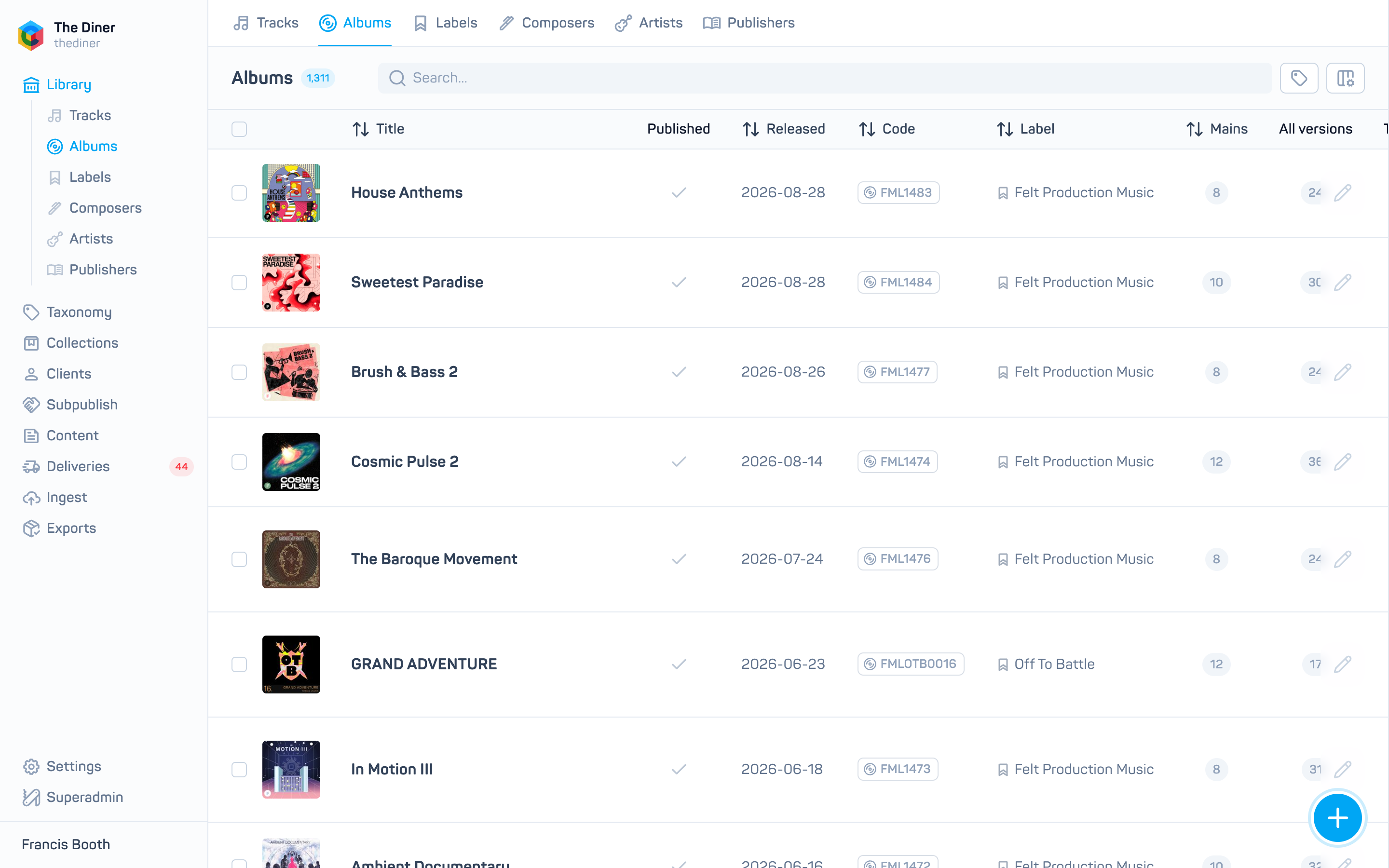
The sidebar
The sidebar groups every area of the admin. Click a group to expand it; click the small arrow at its top edge to collapse the whole sidebar to icons. On phones it opens as a drawer from the menu button.
| Group | What it covers |
|---|---|
| Library | Tracks, Albums, Labels, Composers, Artists, Publishers |
| Taxonomy | Tags, Categories, Order, Limits, Autocomplete, Similarity, Mapping |
| Collections | Playlists, Pitches, Projects |
| Clients | Users, Pending, Stats, Reports, Groups, Products, Transactions |
| Subpublish | Incoming, Outgoing, Agreements |
| Content | Pages, Posts, Categories, SEO, Widgets |
| Deliveries | AIMS, Soundmouse and other providers enabled for you |
| Ingest | Metadata, Assets |
| Exports | Overview, Servers |
| Settings | General, Access, Notifications, Downloads |
Groups you do not have permission for are hidden.
Badges
Red and amber counts on the sidebar tell you something needs attention:
- Clients and Pending: users waiting for approval.
- Subpublish and Incoming: releases waiting to be accepted (red) or published (amber).
- Ingest and Assets: audio or artwork files that failed or were not found (red), or are still processing (amber).
- Deliveries: failed (red) or incomplete (amber) deliveries per provider.
The organisation name
The top of the sidebar shows your organisation’s name and slug.
Lists
Most screens are a list with the same controls:
- Search… box at the top. On many screens typing offers suggestion chips (a tag, a label, a user) that become filters; press Enter to add a plain text search.
- Columns menu to show or hide columns. Your choice is remembered per screen in this browser.
- Page size (25 to 500 rows) and page numbers at the bottom.
- A round + button bottom right to create a new item.
- A pencil on each row to edit. The edit panel slides in from the right and adds
?edit=…to the address, so you can send a colleague a link straight to a record.
Closing a panel with unsaved changes asks “Are you sure?“. Deleting always asks for confirmation and cannot be undone.
The player
Press play on any track to open the player bar at the bottom of the screen, with a waveform you can click to seek, a volume control and a close button. Only one track plays at a time.
The user menu
Click your name at the bottom of the sidebar for:
- Help pages (this site), What’s new (the latest admin changes), Contact support, Get Ingestigator app.
- System status, Developer docs, Privacy policy.
- Customise theme: choose a focus colour and neutral tone, or Invert theme to switch between light and dark.
- Edit profile and Log out.
The What’s new dialog opens automatically the first time you sign in after an update. Dismiss it with Got it.