
Tags
Tags describe your tracks so clients can find them: genre, mood, instrumentation, tempo, use and anything else your taxonomy needs. Manage them under Taxonomy → Tags.
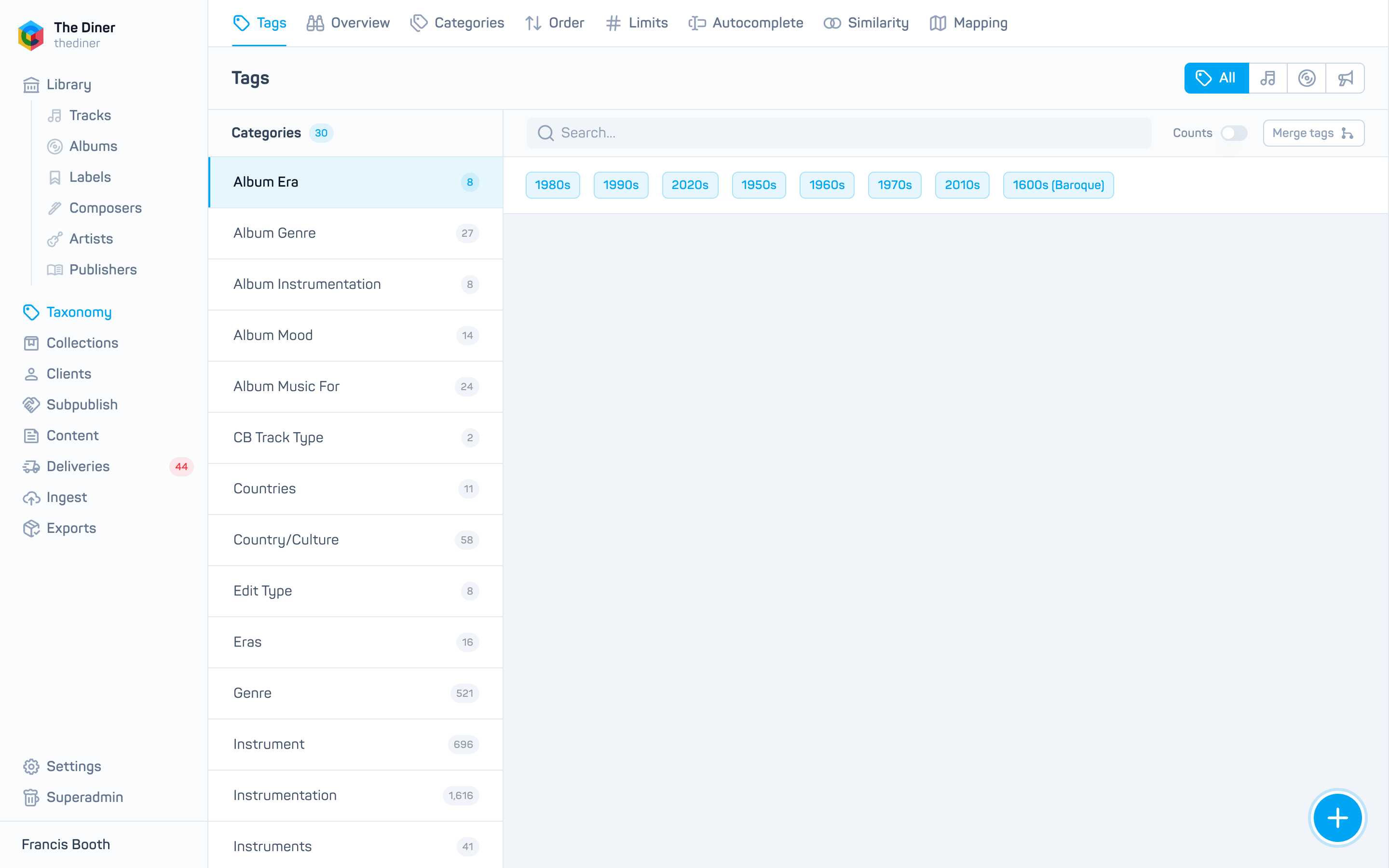
How tags are organised
- Every tag belongs to a tag category (for example Genre). See Tag categories.
- A tag can have a parent tag in the same category, giving one level of nesting, for example Strings → Violin.
- Tags are attached to tracks, albums and playlists. Most arrive with your metadata CSV; you can also add them by hand on a track or album, or in bulk with Batch edit tracks.
- Each tag on a track has a source (from ingestion, from an AI provider, added in the admin, or copied through subpublishing) and can be visible or hidden.
Browse tags
The left panel lists your categories with a count; the right panel shows the tags in the selected category as chips. Use the All / Track / Album / Playlist switch at the top to count and list only tags used on that type of item.
- Type in Search… to filter the category’s tags. Child tags are matched too, and their parents expand to show them.
- Switch on Counts to see how many tracks, albums or playlists carry each tag.
- Click a chip to edit the tag. Click the arrow on a chip to show its child tags.
- Use the arrow keys to move between categories.
Create a tag
- Select the category on the left and click the round + button. The Create tag panel opens with Category already set.
- Optionally pick a Parent from the category’s top level tags.
- Enter the Name and click Create.
A tag’s name must be unique within its category and parent.
Edit, rename or delete a tag
Click a chip to open Edit tag. Change the Category, Parent or Name and click Save. The panel also shows how many tracks, albums and playlists use the tag; click a count to open that list filtered by the tag.
Deleting removes the tag everywhere
Delete removes the tag, all of its child tags, and every assignment on tracks, albums and playlists. It cannot be undone. To fold a duplicate into another tag, use merge instead.
Merge tags
Use Merge tags (in the toolbar or inside Edit tag) to combine duplicates such as 1980s and 80s.
- Under From, choose the tags to remove.
- Under Into, choose the tag that should remain.
- Click Merge, read the warning, and click Merge again.
Everything tagged with the removed tags is retagged with the surviving tag, and the removed tags are deleted. Child tags of a removed parent are deleted too, so reparent them first if you need them.