
Products and subscriptions
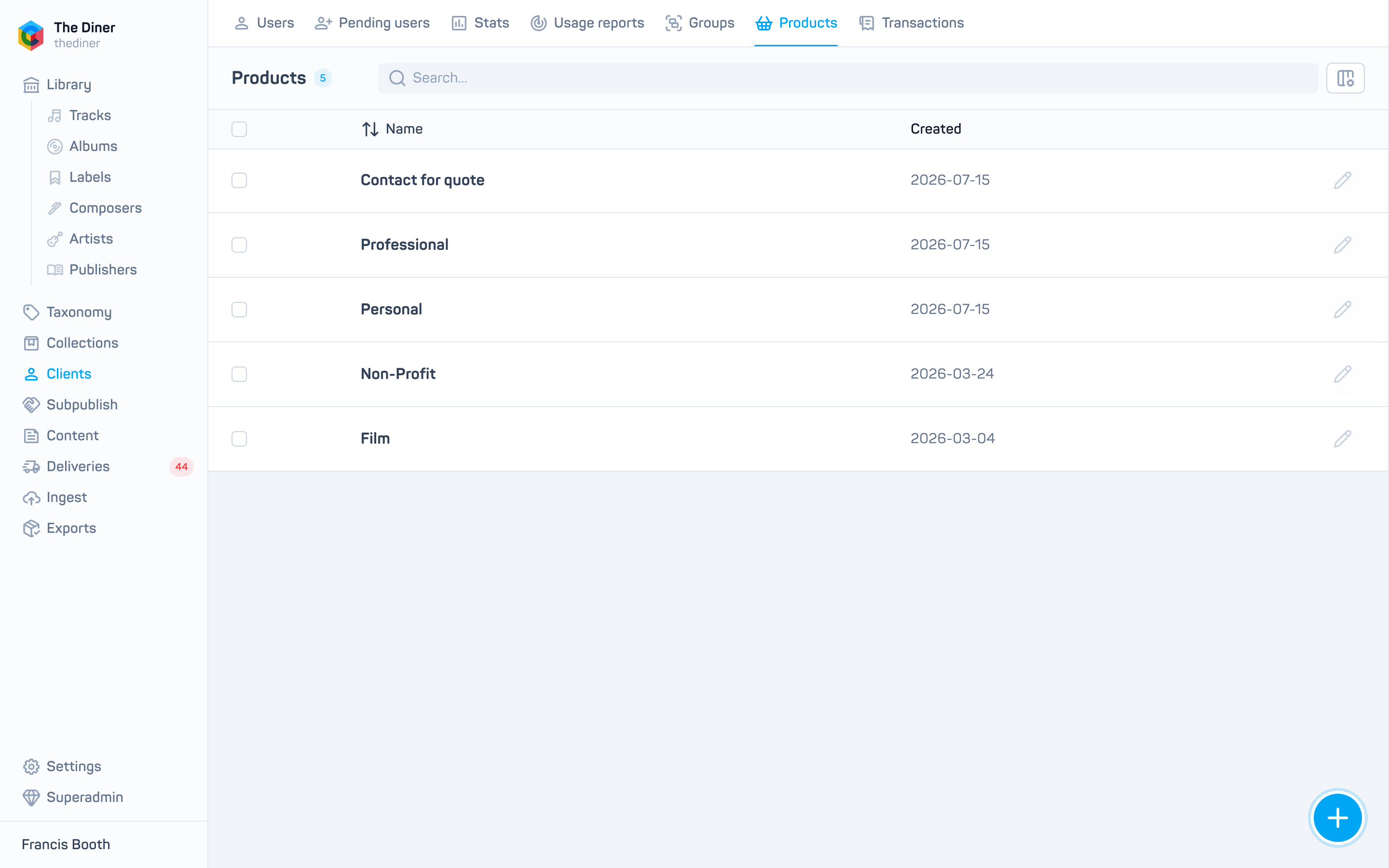
Clients → Products defines what clients can buy on your site: one off licence products and subscription plans, each with one or more prices. Payments run through Stripe using the keys configured for your organisation.
Create a product
- Click the round + button. The Create product panel opens.
- Switch Active on when the product should be sold, and Subscription on if it is a recurring plan.
- Enter a Name and Description. For plans with fair use terms, set Fair use limit and Fair use interval (day, week, month or year).
- Under Prices, click Add new item for each price and complete:
| Field | Notes |
|---|---|
| Name | Shown at checkout. Required. |
| Default | The price selected first. |
| Active | Untick to withdraw a price without deleting it. |
| Description, Terms, Terms Summary | Shown to the buyer. |
| Interval Count, Minimum Interval Count | Billing period length and the minimum commitment for subscriptions. |
| Currency | Three letter code, for example gbp. |
| Usage Limit | Cap on downloads or uses per period. |
| Free Trial Days | Trial length for subscriptions. |
| Amount | In the smallest unit of the currency: 4999 is £49.99. |
| Display Order | Order at checkout. Drag the handle to reorder rows. |
- Click Create.
Renaming breaks rate cards
Changing a product or price Name after launch shows the warning “Changing value of this field can break ratecard”. Names are referenced by your licensing rate card, so agree the change with Cadenzabox first.
Edit or withdraw a product
Open a product with the pencil icon. Switch Active off to stop selling it; products cannot be deleted from the admin.
Where subscriptions appear
Individual clients’ subscriptions are managed by Stripe and are not listed in the admin yet. Successful purchases appear under Transactions and licences.