
Playlists
Playlists are curated track lists published on your client site at /playlists/…. Manage them under Collections → Playlists.
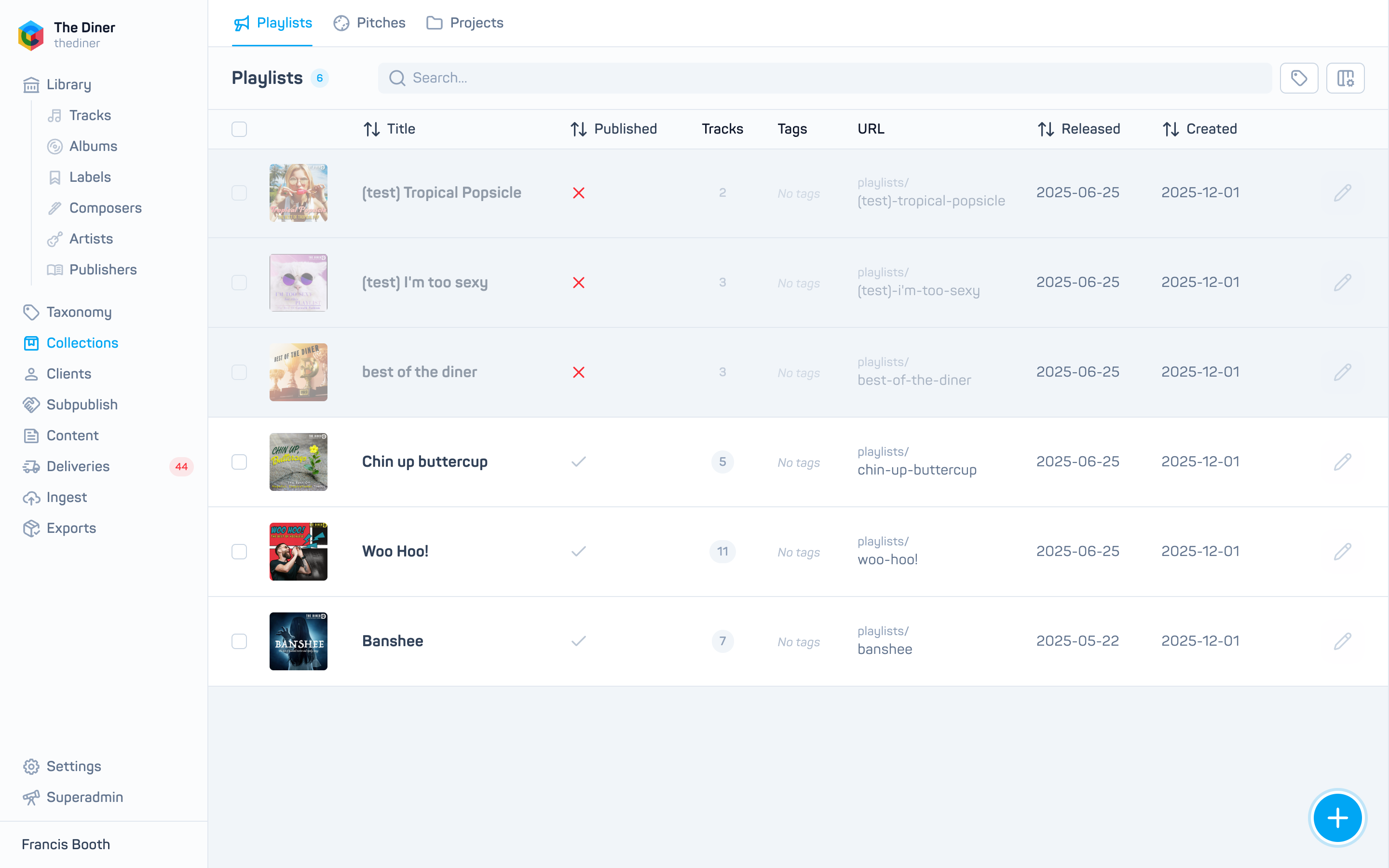
The list shows artwork, Title, Published, Tracks, Tags, URL, Released and Created. Click a tag to filter by it, and the URL to open the live page (unpublished playlists cannot be opened). Row actions: Export and the pencil.
Create a playlist
- Click New playlist.
- Enter a Title (required). Optionally set Released, a Description and Tags.
- Under Tracks, search in Add tracks and click results to add them. Drag the handle to reorder. Use Add chapter to place a heading above a track.
- Leave Published on, or switch it off to keep the playlist hidden.
- Click Create.
- Reopen the playlist to upload a Packshot and optional Hero image under Images; these appear only once the playlist exists and save immediately.
The public address is generated from the title and shown in the URL field with a copy button.
Renaming changes the address
The URL is rebuilt from the title whenever you rename a playlist, so links you have shared stop working.
Edit and remove
Open a playlist with the pencil, change fields or tracks and click Save. Track changes are only stored when you save. Playlists can be deleted by Cadenzabox staff; unpublish one to take it off your site.
Automated playlists
Some organisations have playlists that build themselves from a text prompt or from seed tracks. These are configured by Cadenzabox; contact [email protected] to set one up.
Related
- Pitches
- Projects
- Widgets to feature playlists on your tracks page
- Download audio from the admin