
Export audio and metadata
Every export you start from the admin, whether a quick album download or a full catalogue push to an SFTP server, becomes a job you can follow under Exports → Overview. Exports are available to admins.
Start an export
Exports start from the content, not from this page. Use the download icon on a track, album, label, playlist, pitch or project, select several and click Download or Export, or click Export on an album overview. The Export dialog lets you choose formats, what to include, a metadata sheet and how to deliver it. See Download audio from the admin.
The Overview
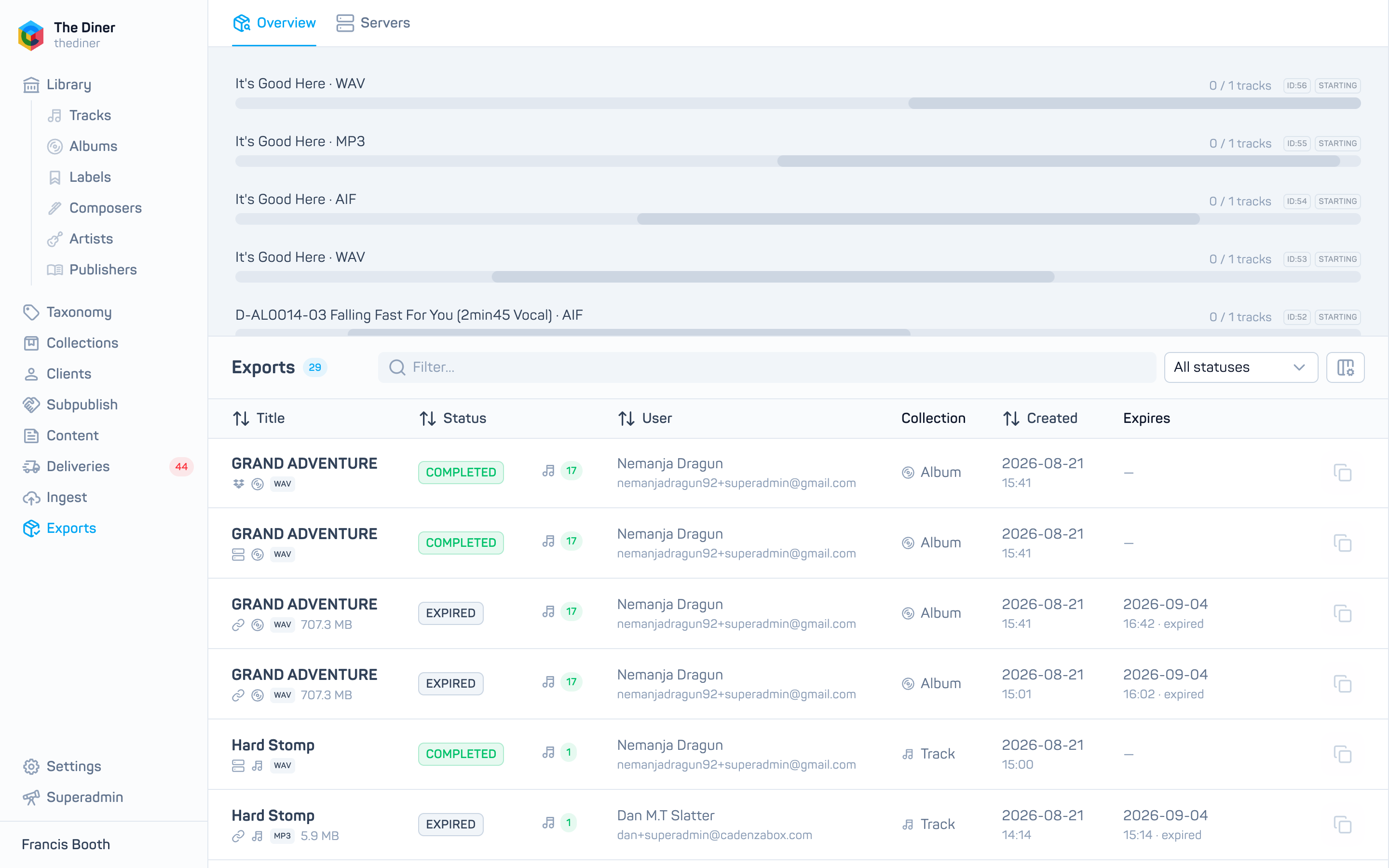
Running jobs appear at the top with a progress bar, tracks done and failed, and the current phase (transcoding, CSV, zipping, uploading, delivering).
The table lists finished jobs from the last 30 days. Filter by Status: Completed, Completed w/ errors or Error. Columns: Title (with delivery type, collection type, file type and size), Status, completed and failed counts, User (or System), Collection, Created and Expires. Use Columns to add file type, kind (audio or metadata), delivery type and size sent.
Row actions: Download for completed downloads, Copy download link, and View errors.
Click a row to expand it for live progress, the status message, the Errors list, and per delivery type: Re-download, Copy link with its expiry, or Delivered to the SFTP or Dropbox path.
Links expire
Generated download links are valid for two weeks; the Expires column counts down and the status turns EXPIRED afterwards. Start a new export if you need a fresh link.
Errors
View errors opens a panel titled Errors for: the job, listing each error with its source (audio, CSV, zip, SFTP, Dropbox or delivery) and whether it can be retried. Jobs cannot be retried or cancelled from the admin; fix the cause, for example a missing audio file, and export again.