
Tag mapping
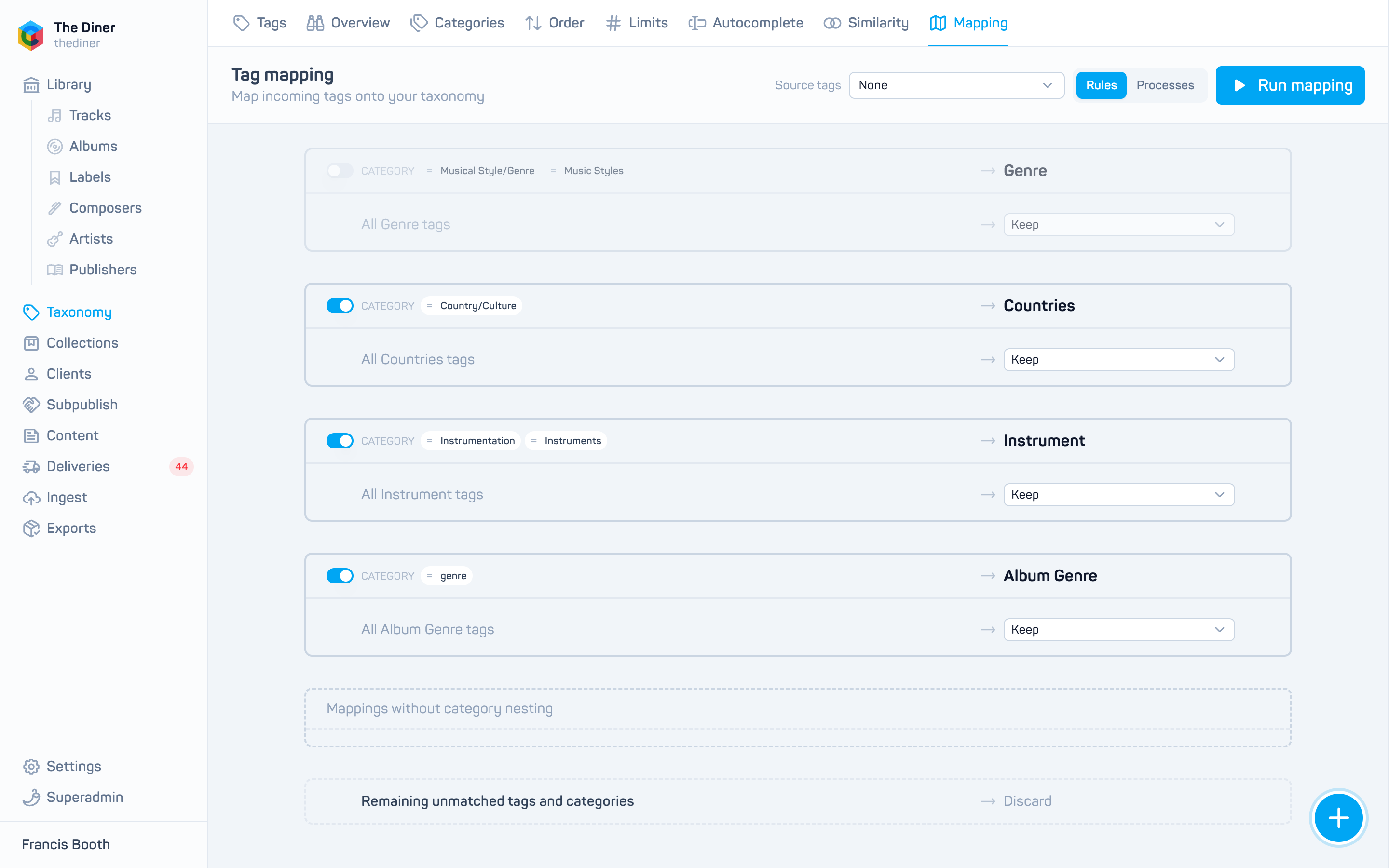
Tag mapping translates one set of tags onto your taxonomy. Its main use is subpublishing: when an original publisher’s releases arrive, their tags can be mapped onto your categories and tags instead of being copied verbatim. It can also tidy your own tag set. Find it under Taxonomy → Mapping.
Not yet switched on for every organisation
Tag mapping is still being finished and does not appear in every admin yet. Ask [email protected] if you would like it set up for your organisation.
How it works
- You write rules: a category mapping says which incoming category maps to one of yours; a tag mapping says which incoming tag maps to one of your tags. Matches can be exact, contains, starts with, ends with, regular expression or anything.
- You run the rules against a source: an original publisher’s tags (optionally limited to certain agreements or labels) or your own tag set.
- The run produces a list of proposed changes, ready for review: assign to an existing tag, create a new tag, hide, delete, or nothing to do.
- You apply changes one by one or Apply all.
Every run snapshots the rules it used, so past results stay explainable after the rules change.
Write rules
- New category mapping: choose the incoming category name matches, the category of yours to map to, and whether to Keep or Discard incoming tags in it that have no tag rule of their own.
- New tag mapping: choose the incoming Category (none, custom matches, or inherit from the category rule), Parent tag likewise, the Tag name matches, the tag of yours to map to, and whether to Keep or Discard child tags.
- Drag a tag mapping into a category section to make it inherit that category’s rule, or out again to make it stand alone.
- Switch a rule off with its toggle to keep it without using it.
Choose Source tags in the toolbar to preview which incoming tags each rule would capture and which remain unmatched; click an unmatched chip to start a rule for it.
Run and review
- Click Run mapping. Choose the Source, what to do with Unmapped tags (Keep, Hide or Discard) and an optional scope of agreements, labels, albums or tracks.
- Switch to the Processes tab. When the run is Ready for review, expand it.
- Check each proposed change and click Apply, or Apply all. Switch on Show ignored to see incoming tags that needed no change.
Applying is permanent
Applied changes retag tracks and albums and can delete or hide tags. Review carefully before Apply all.
Mapping can also run automatically when an agent accepts a release, if the publishing agreement has Tag mapping switched on.