
Tag categories
Categories group your tags and control how each group appears on your client site. Manage them under Taxonomy → Categories.
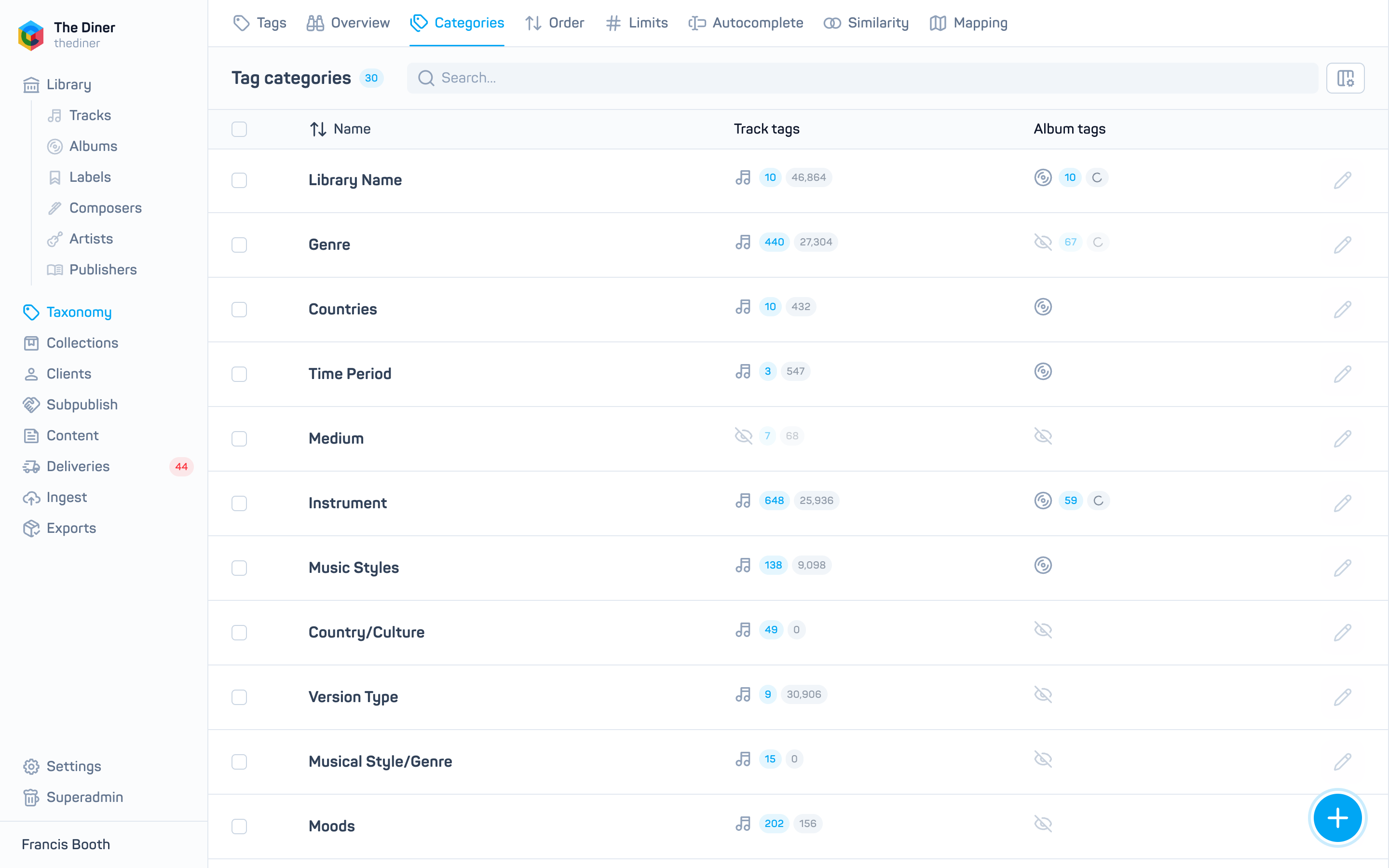
The table shows each category with its tag counts for tracks, albums and playlists. Click a count to open that category on the Tags page. Use Columns to show the order, applied counts and creation date.
Create or edit a category
Click New tag category, or the pencil on a row.
| Setting | What it does |
|---|---|
| Tag category name | Required. |
| Show in autocomplete | Include the category’s tags in search suggestions. Switching it off also removes the category’s tags from the tag cloud and tag search on your site. |
| Target languages | Only show the category to visitors browsing in these languages. Leave empty for all. |
Then, separately for Tracks, Albums and Playlists:
| Setting | What it does |
|---|---|
| Show in cloud | Show the category in that page’s tag cloud. Also set on Tag order. |
| Use for similarity | Use the category’s tags when finding similar items. Also set on Similarity. |
| Single select | Let users pick only one tag from this category at a time. |
| Limit | Maximum number of tags shown for the category in the tag cloud. Also set on Tag limits. |
| Order | Position of the category in the tag cloud. Also set on Tag order. |
Click Create or Save.
Defaults for a new category
A new category is shown everywhere, used for similarity and in autocomplete, with a limit of 50 tags per cloud, even though the switches look off before you save. Edit it afterwards to tighten these.
Deleting a category deletes its tags
Delete removes the category, every tag in it and every assignment of those tags. It cannot be undone.
Categories from your metadata
Each CATEGORY: … or ALBUM:CATEGORY: … column in your metadata CSV creates a category on import. See Prepare your metadata CSV.