
Export servers (SFTP)
Save SFTP destinations under Exports → Servers so they appear in the Export to SFTP server option of the export dialog.
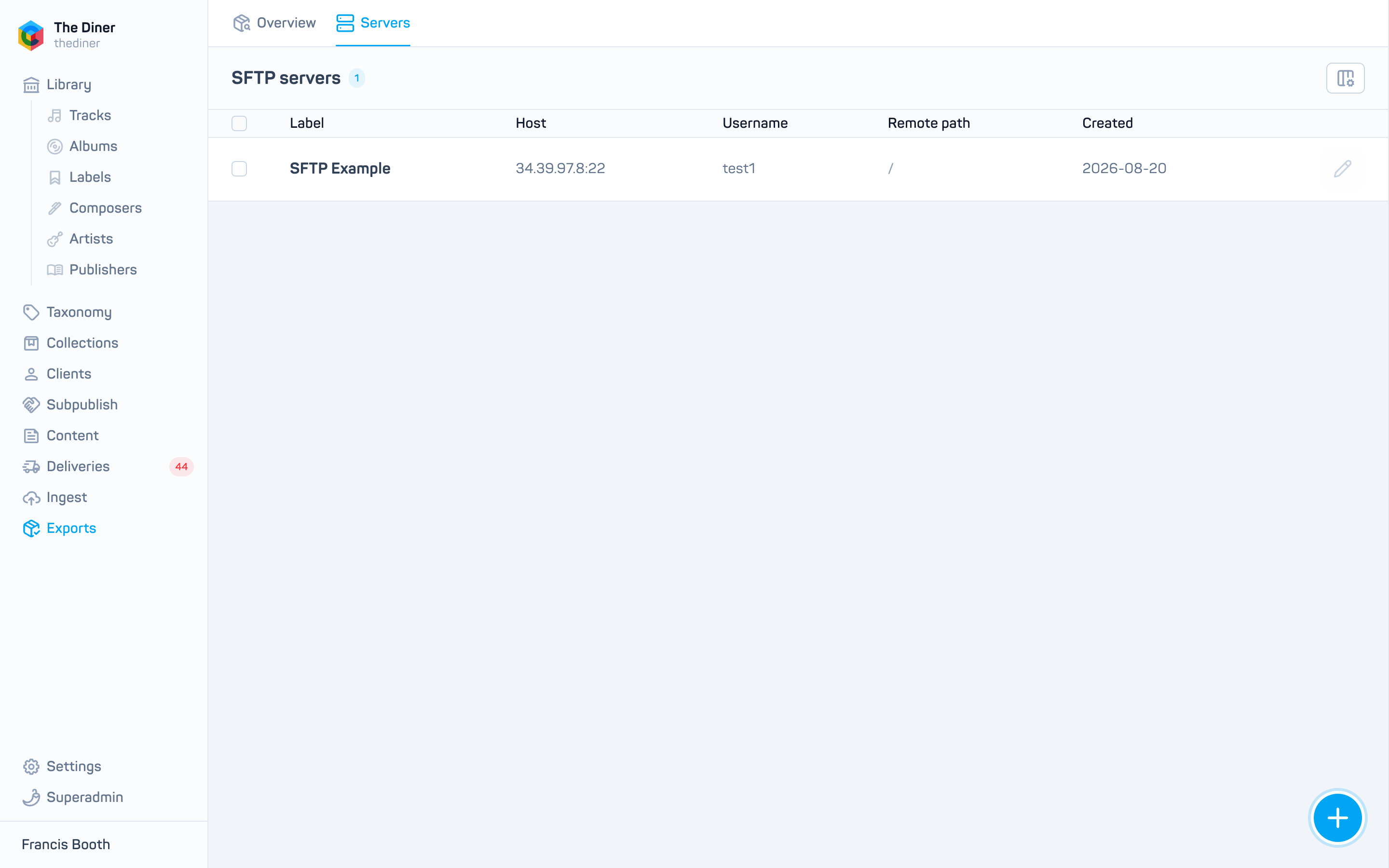
Add a server
- Click New SFTP server (or Add your first SFTP server).
- Enter a Label such as Acme Distribution.
- Enter the Username and Password.
- Enter the Host (for example
sftp.example.com), Port (22 unless told otherwise) and the Remote path to deliver into (/by default). - Click Create.
Passwords are encrypted and never shown again; when editing, leave the password untouched to keep it.
Use a server
In the export dialog choose Export to SFTP server, pick the Server and click Export. Progress and the delivered path appear under Exports → Overview. Watermarked audio delivered this way is sent as MP3 128 kbps.
There is no test button. If the credentials are wrong the export job shows an SFTP error in View errors; correct the server and export again.
Remove a server
Open it with the pencil and click Delete. Past exports keep their history.