
Tracks
Library → Tracks is the admin’s home page: every track in your organisation’s catalogue, with playback, filters, editing, batch editing and downloads. A track is your catalogue’s copy of a recording; see Releases and recordings if you are wondering why the edit form mentions both.
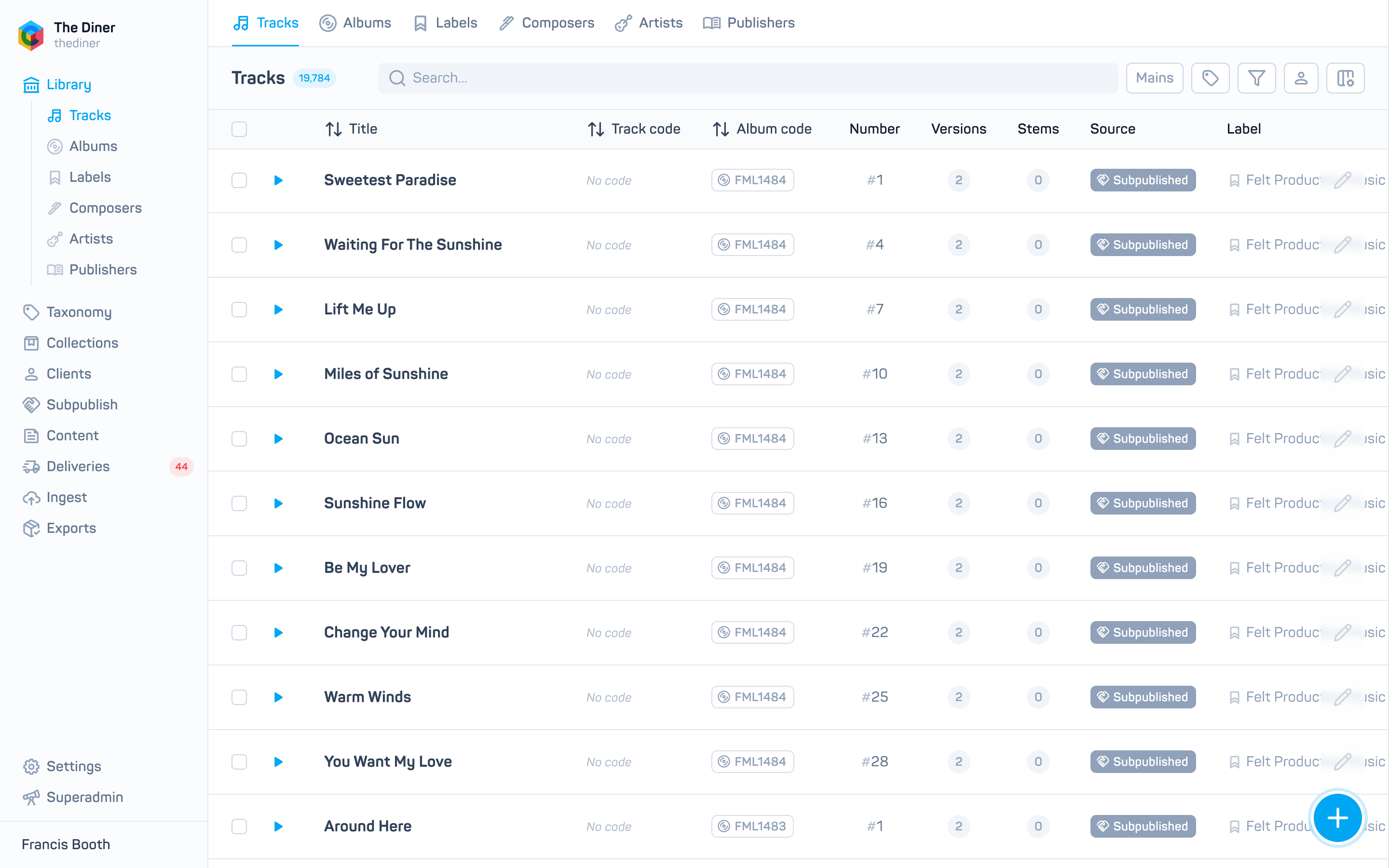
Find tracks
- Search… accepts free text (press Enter) or suggestion chips for tracks, albums, groups, tags and composers. Chips become filters you can remove by clicking them.
- The Mains button switches which versions you see: Main tracks, Alternates only, Cutdowns only, Stems only or All versions. Clicking a track’s Versions or Stems count switches to that track’s versions.
- Tags opens the tag browser: pick tags by category to filter. Several tags narrow the list together.
- Filters offers Published / Unpublished, Has audio / Processing / No audio and Original publisher / Subpublished.
- Choose an album chip and an album overview appears above the list with artwork, code, label, description, counts, tags and Export and Edit buttons.
Everything you choose is kept in the address bar, so you can bookmark a view or send it to a colleague.
The list
Columns include Title (with version title beneath for versions), Track code, Album code, Number, Versions, Stems, Source (original publisher or subpublished), Label and Created. Use Columns to add Published, Album, Tags and Composers. Rows with no usable audio or that are unpublished are dimmed.
Press the play button to hear a track in the player bar. If audio is missing or still processing, the icon explains why.
Row actions: Show all versions, Download audio (see Download audio from the admin) and the pencil to edit.
See the catalogue as a user
Click Impersonate, search for a user and pick them. A banner shows their groups and the list shrinks to what they can see. A red No access banner means they have no group with view access. Clear the banner to return to your own view. See Groups and access types.
Create or edit a track
Click the round + button, or the pencil on a row.
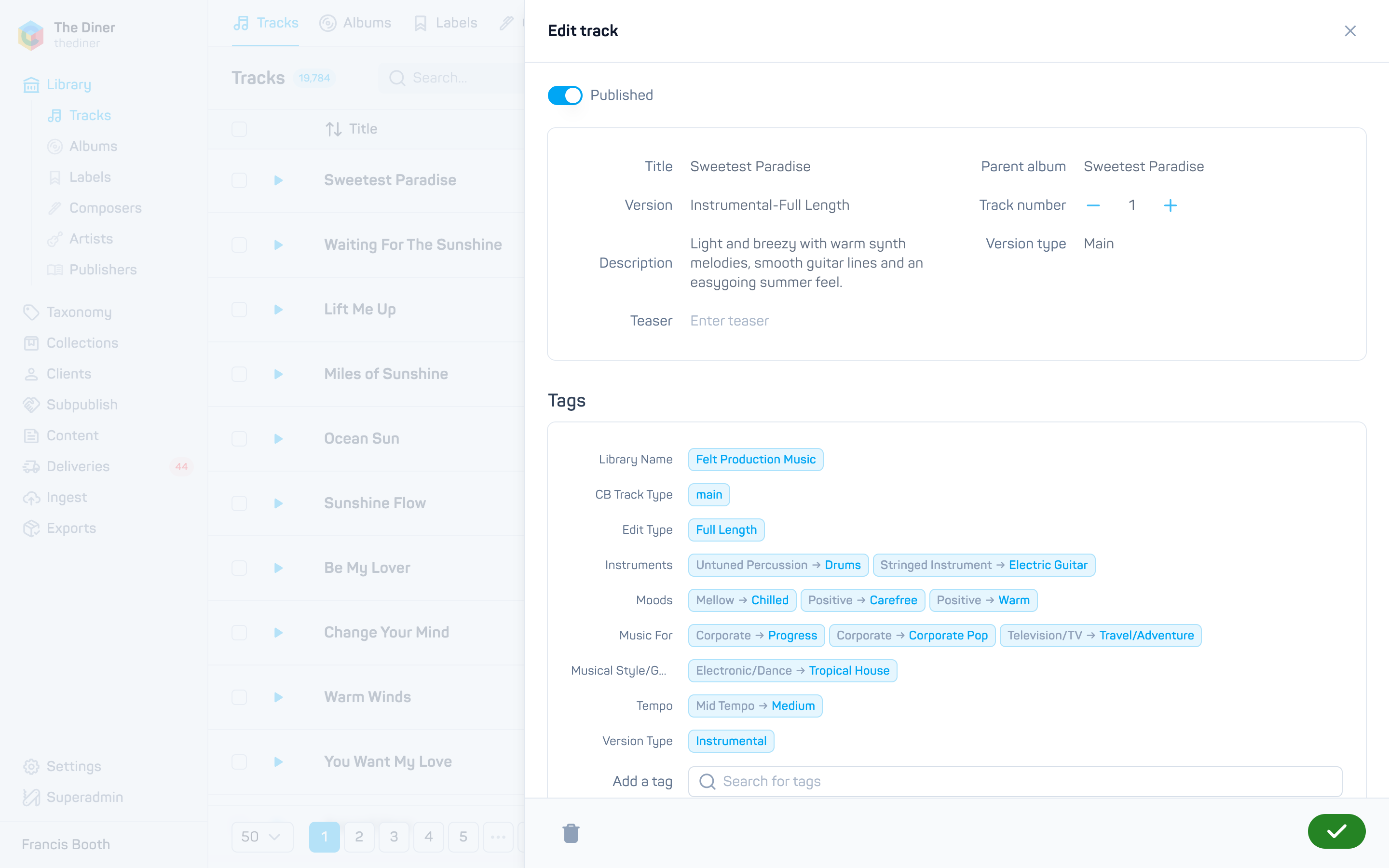
| Field | Notes |
|---|---|
| Published | On by default. Off hides the track from your site. |
| Title, Version, Description, Teaser | Title is required. Translatable when your organisation has more than one language. |
| Parent album | Required. The album this track belongs to. |
| Track number | Required, 1 to 999. |
| Version type | Main, Alternate, Cutdown or Stem. Anything but Main reveals Parent track and Version number. |
| Parent track | The main track this version belongs to. Once saved, it can only be changed for alternates. |
| Tags | Search and add tags, or Create a tag from the search results. See Tags. |
| Audio | Edit mode only. Upload with the round button, watch the Uploading… and Processing… states, then play the waveform. Also BPM and Key. |
| Lyrics | Free text. |
| Codes | Code (your identifier), Cadenzabox ID (fixed), ISRC, ISWC, UPC, EAN, PRS tunecode, GEMA, ASCAP, BMI and SESAC codes. |
| Interested parties | Choose Composers. Their PRO, IPI and shares, and the Publishers list, are shown read only; they come from your metadata CSV. See Composers and publishers. |
Click Save, or Create track for a new track, which then offers to Upload audio straight away (or Skip).
Upload audio before editing other fields
Uploading audio from the edit panel closes the panel as soon as the upload starts. Save any other changes first.
For subpublished tracks only Published and Tags can be changed; everything else belongs to the original publisher. See How subpublishing works.
Delete a track
Delete in the edit panel removes the track after confirmation. If your organisation is the original publisher, this deletes the recording itself and therefore every subpublisher’s copy of it. If the track was subpublished to you, only your copy goes.