
Labels
Library → Labels lists the labels in your catalogue with their logo, code, album and track counts and origin (Original publisher or Subpublished).
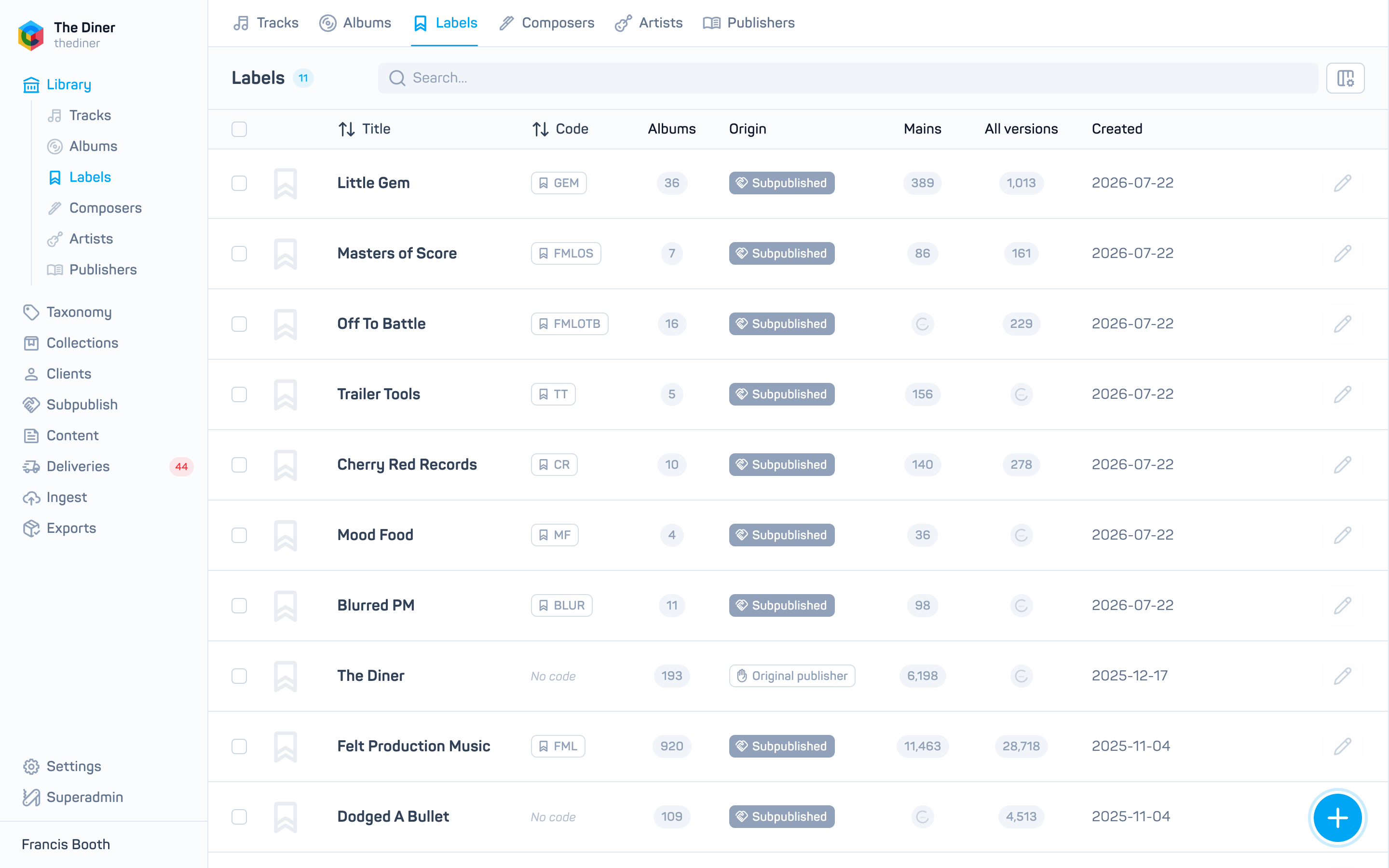
Each label has two parts: the label itself (title, code, description, groups, sort order) and its label page on your site (published state, logo, bio, links). The edit panel handles both together.
From the list
- Click the Albums, Mains or All versions count to open the albums or tracks on the label.
- Row actions: View albums, Export (downloads every album on the label; see Download audio from the admin), View stats (opens Stats filtered to the label) and the pencil to edit.
Create or edit a label
| Field | Notes |
|---|---|
| Published | Whether the label’s page appears on your site. New labels start unpublished. |
| Title | Required. Renaming a label is reserved for Cadenzabox staff; contact support if a title must change. |
| Code | Your label code, used in album codes and filenames. |
| Description, Bio, Links | Description belongs to the label; bio and links to its page. |
| Logo | Edit mode only; uploads immediately. See Artwork (packshots). |
| Groups | Groups applied to every album on the label. See Groups and access types. |
| Sort order | Position on your site’s labels page. |
| GEMA code | For German repertoire. |
Labels arriving through subpublishing keep their title, code and description locked; you can still publish the page, add a bio, logo and links, and set groups.
The panel also shows Filter tracks and Filter albums buttons with counts.
Delete a label
Delete removes the label itself, not just its page, and is refused while albums still belong to it. Move or delete the albums first, or contact support.
Related
- Albums
- Groups and access types
- Publishing agreements for sharing a label with an agent