
Stats
Clients → Stats shows how your client site is being used: who is searching, playing, downloading and licensing, and for which tracks.
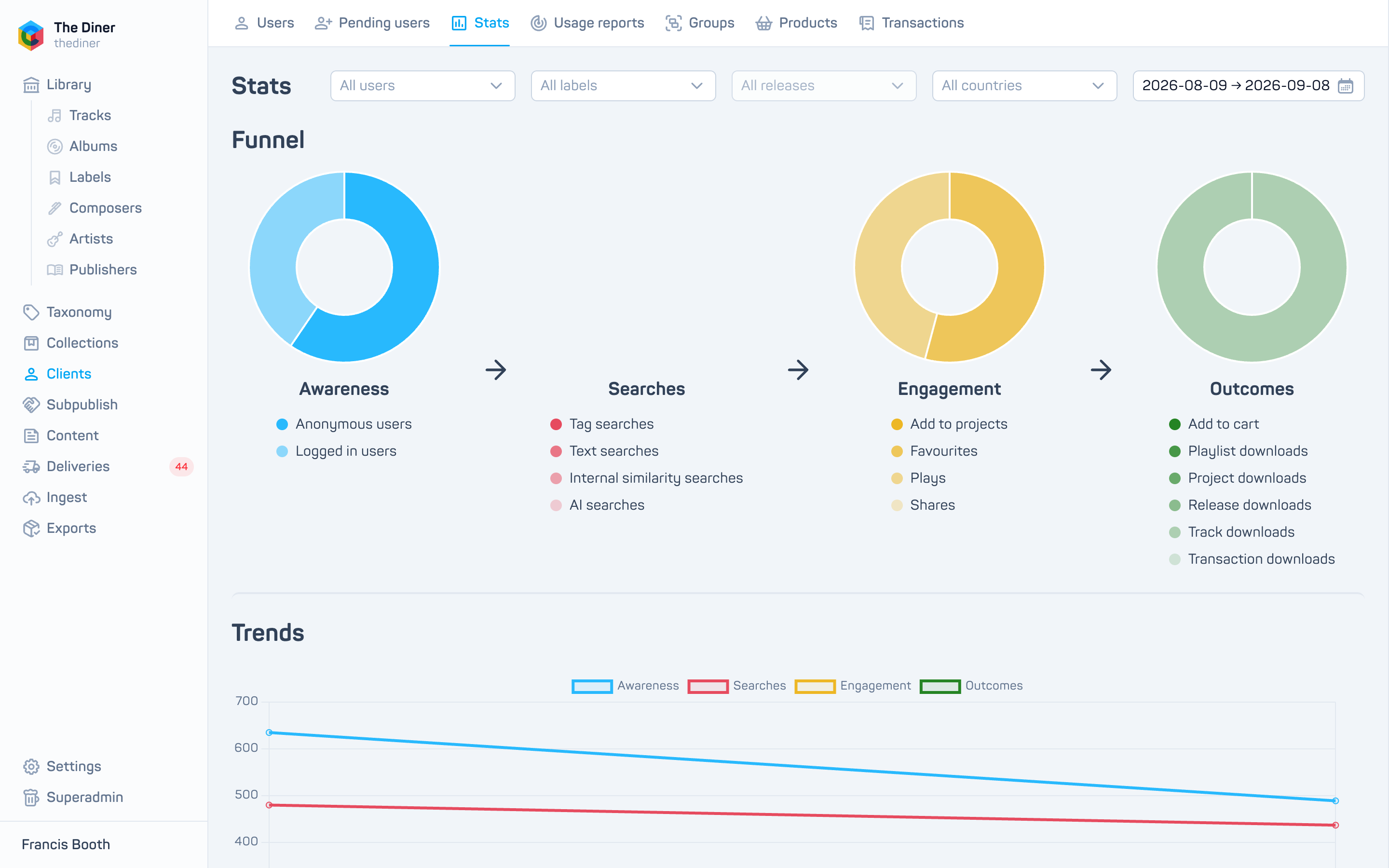
Choose what to look at
The controls at the top right filter every section:
- All users, All labels, All releases (choose a label first) and All countries. Clear all appears once a filter is set.
- The date button opens presets (One week, One month, Three months, Six months, One year, Year-to-date) and a calendar for a custom range. The default is the last 30 days.
Filters are reflected in the address bar, so you can bookmark or share a view.
Sections
Funnel: four dials that follow a visitor from arrival to outcome.
| Stage | Counts |
|---|---|
| Awareness | Page views by anonymous and signed in users |
| Searches | Tag searches, text searches, similarity searches and AI searches |
| Engagement | Adds to projects, favourites, plays, shares |
| Outcomes | Adds to cart, and downloads of playlists, projects, releases, tracks and purchases |
Trends: the same four stages month by month.
Active users: the top ten users by page views, searches, engagement and outcomes. Click a name to open that person’s own stats page, with their funnel, trends and a day by day Activity stream of searches, plays, shares, favourites, downloads and project adds.
Search terms: the twenty most used tags and text searches.
Top tracks: the twenty most played and most downloaded tracks.
When numbers are missing
Stats depend on the tracking built into your client site, so custom sites may report fewer events. If a section shows failed to load, click Retry. The message “Analytics is not configured” means reporting has not been switched on for your organisation yet; contact [email protected]. Very large date ranges can time out; try a shorter one.