
Deliver audio and artwork
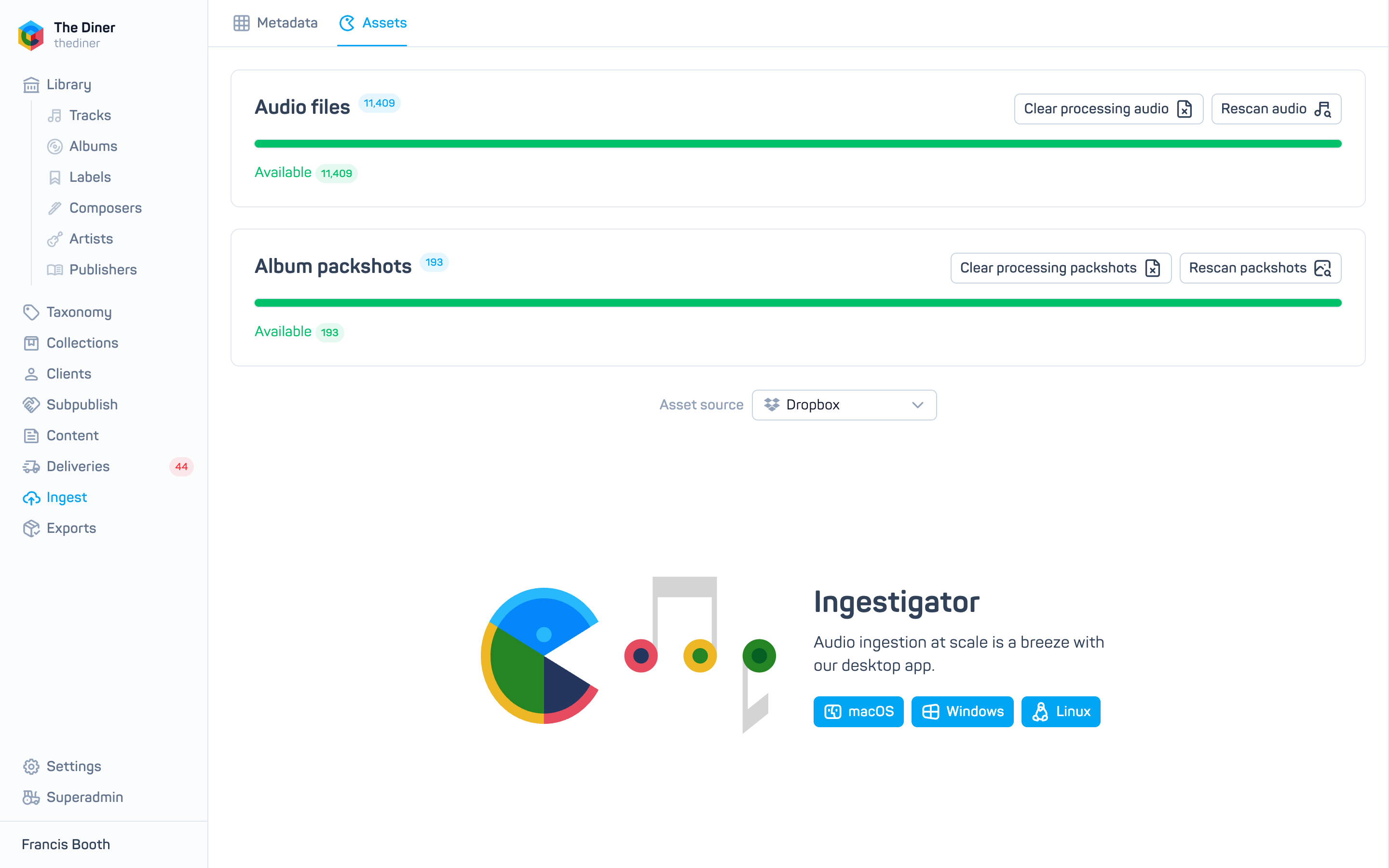
Audio and artwork are delivered separately from your metadata CSV and matched to tracks and albums by filename. Ingest → Assets shows how that matching is going.
File requirements
- Audio: WAV, AIFF, MP3, FLAC, ALAC, M4A, AAC or OGG; mono or stereo. Filenames must match the
TRACK: Audio Filenamecolumn exactly, including the extension. - Artwork: JPG or PNG, one per album, named as in the
ALBUM: Artwork Filenamecolumn.
Choose where files are delivered
Your organisation has one Asset source, set at the bottom of the Assets page or under Settings → General → Audio ingestion source:
- Ingestigator: our desktop app uploads files straight to your organisation’s cloud storage. Recommended. See Ingestigator.
- Dropbox: a shared Dropbox folder provided by Cadenzabox, used by organisations set up before Ingestigator.
Changing the source affects future imports and where every Rescan looks.
Deliver and rescan
- Upload the files with Ingestigator, or copy them into your Dropbox folder as a flat list.
- On Ingest → Assets, click Rescan audio (labelled Rescan audio (Ingestigator) when that is your source) and Rescan packshots. Mercury looks for every missing or failed file again.
- Watch the Audio files and Album packshots cards: the bar turns green as files become Available. Pending, Queued and Processing mean work is in progress; No file means the filename was not found; Failed means the file could not be processed.
You can also rescan a single import from Ingest → Metadata, or a single album from the errors list below.
Find what is missing
Click View errors on the Audio files card. Albums with missing audio are listed with a count; expand one to see each track’s expected File name, Track number and Version number. From there you can Rescan audio for just that album, Goto album, or open the track with the pencil to upload the file by hand.
The Album packshots errors list works the same way for artwork.
Upload a single file by hand
Open the track from Library → Tracks and use the upload button in the Audio section, or open the album from Albums to upload its packshot. See Tracks and Artwork (packshots).