
Albums
Library → Albums lists your catalogue’s albums: artwork, publish state, code, label, track counts, tags and where each came from. An album is your catalogue’s copy of a release; see Releases and recordings.
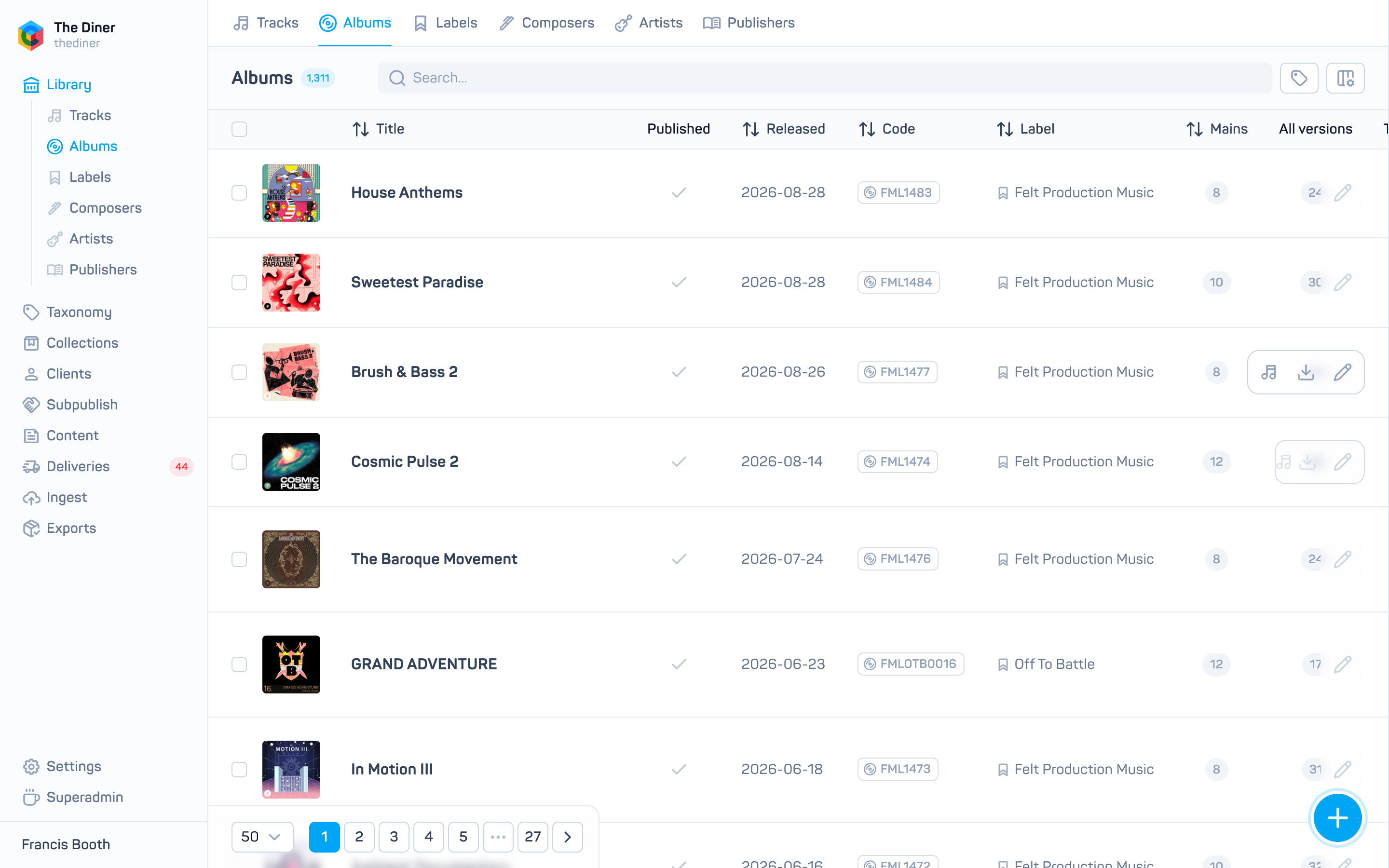
Find albums
Search… offers chips for albums, groups, album tags and labels, plus free text. Tags opens the tag browser. Click a Label to jump to it, a Mains or All versions count to open the tracks, and a tag to filter by it. The list is sorted by release date, newest first.
Row actions: View tracks, Export (see Download audio from the admin) and the pencil to edit.
Publish or unpublish in bulk
Tick albums and click Publish or Unpublish in the toolbar. Every track on those albums changes state too. Export downloads the selected albums and Export metadata produces a metadata CSV for them.
Create or edit an album
| Field | Notes |
|---|---|
| Published | Saving an album’s published state also applies it to all its tracks. For a subpublished album, switching it on publishes the release to your site, the same as Publish under Incoming releases. |
| Title, Released, Label, Code | All required. Cadenzabox ID is fixed. |
| Description | Translatable. |
| Packshot | Edit mode only: hover the placeholder and upload. See Artwork (packshots). |
| Tags | Album level tags. |
| Groups | Who can see the album; see Groups and access types. Label groups are inherited from the label and cannot be edited here. |
| Chapters | Edit mode only. Add chapter above a track to start a section; Edit chapter to rename, or clear the name to remove it. |
Click Create or Save. Chapter changes and artwork uploads save immediately, independent of the Save button.
For subpublished albums only Published, Tags and Groups can be changed.
Delete an album
Delete in the edit panel removes the album and its tracks after confirmation. As with tracks, deleting an album you originally published removes it from every subpublisher too.